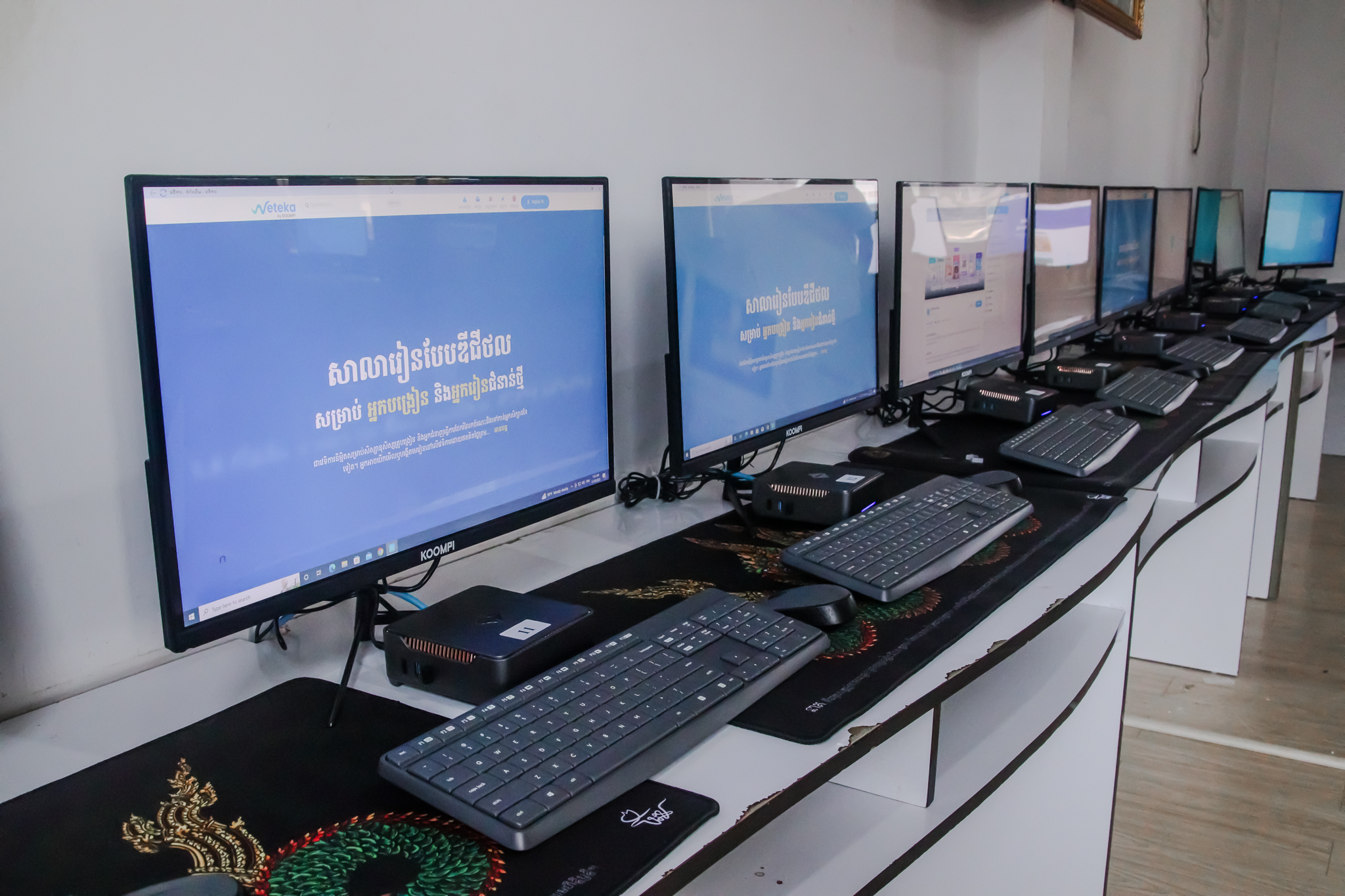
See every screen
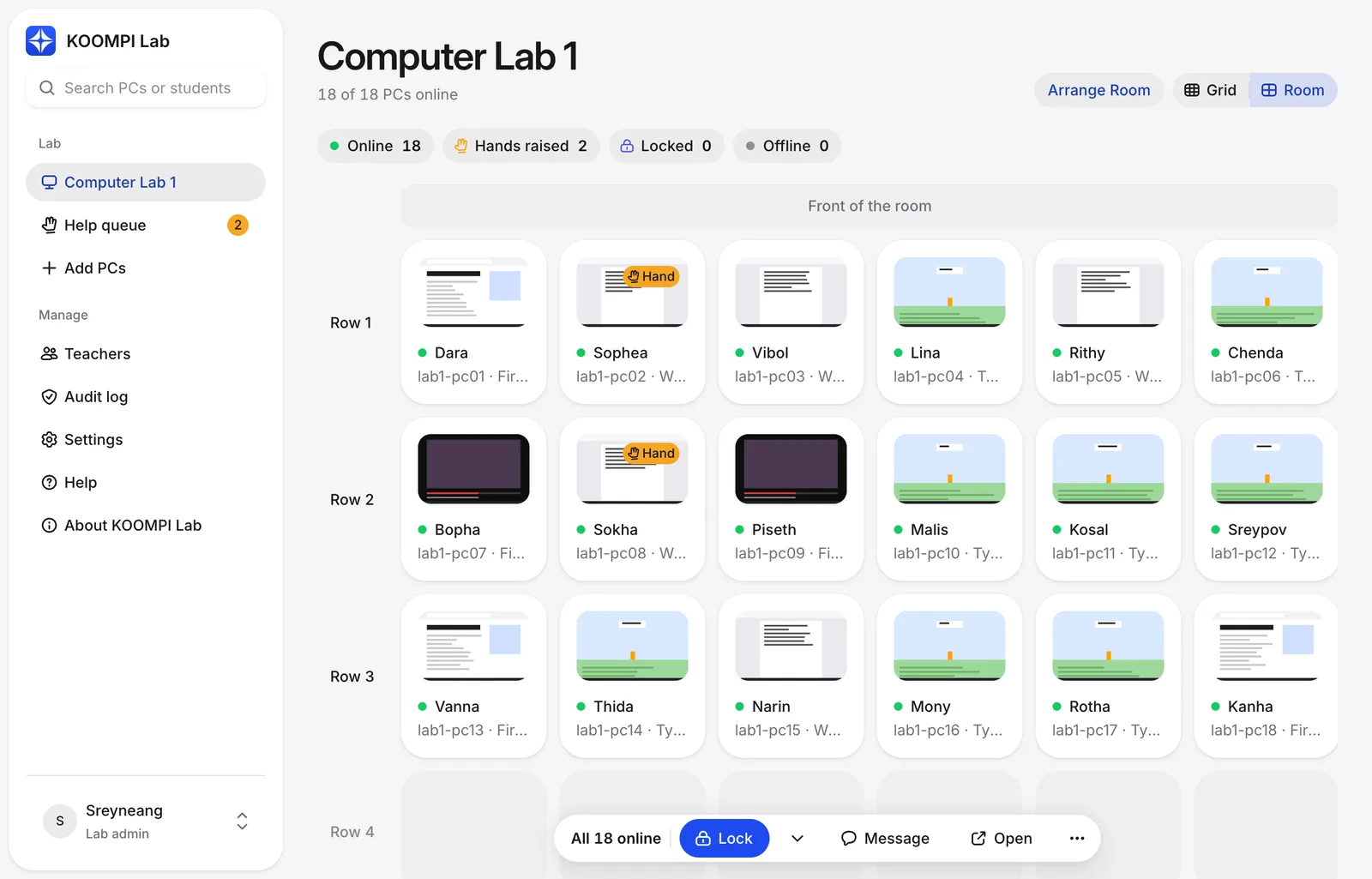
Live pictures of every student PC, in a grid or arranged like your room. Status shows at a glance: online, hand raised, locked.
 Included with every OneLab
KOOMPI Lab is the teacher console for school computer labs. See every student's screen, lock the room or send a message in one click — over the school network, with no internet needed.
Version 0.1.10 for Windows, macOS, KOOMPI OS and Linux
All platforms and student PCs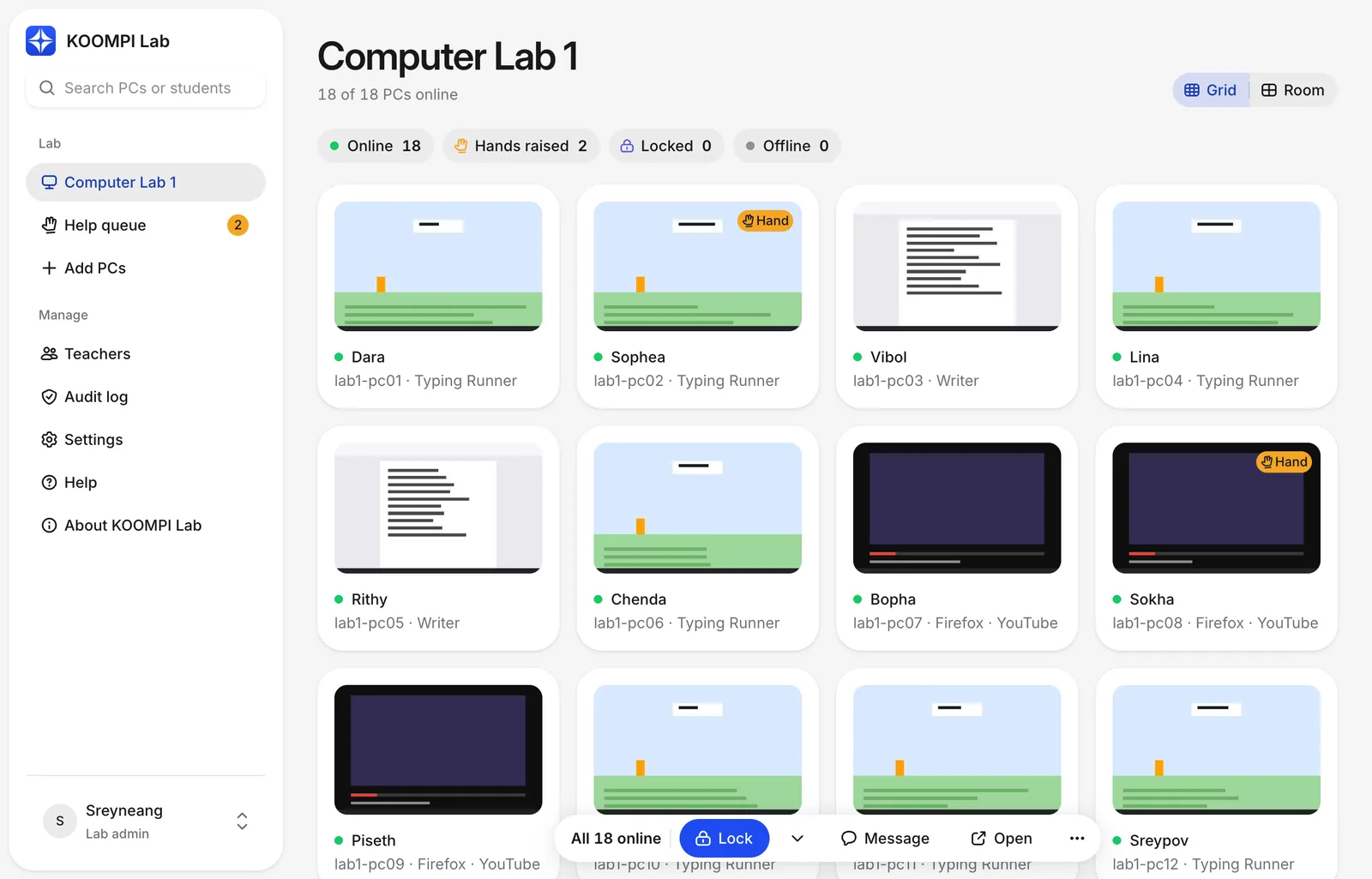
Runs on the school network
Khmer by default
Windows, macOS, KOOMPI OS and Linux
Try it in your lab
01Features
Teachers glance at it between explaining and walking the room, so every action is one click from the screen it affects.
Live pictures of every student PC, in a grid or arranged like your room. Status shows at a glance: online, hand raised, locked.
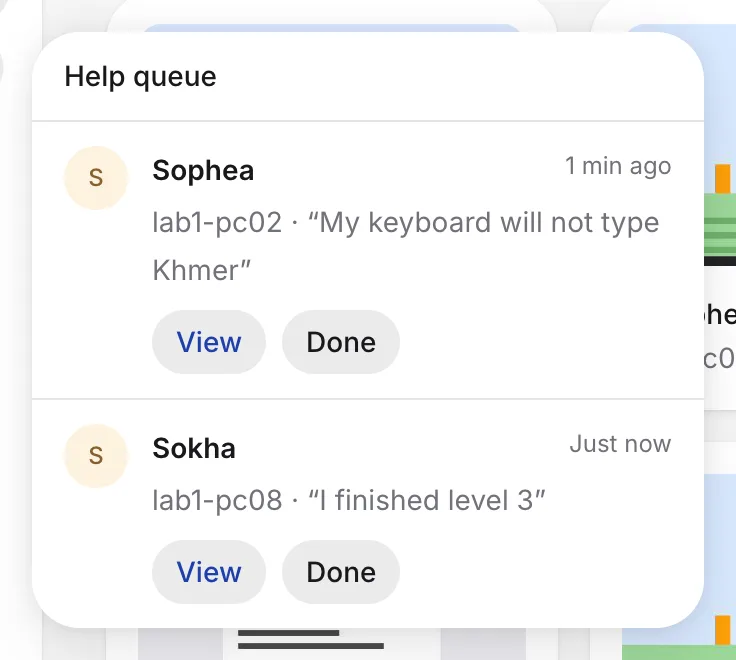
Students raise a hand from the tray and add a note. Answer them from the help queue.
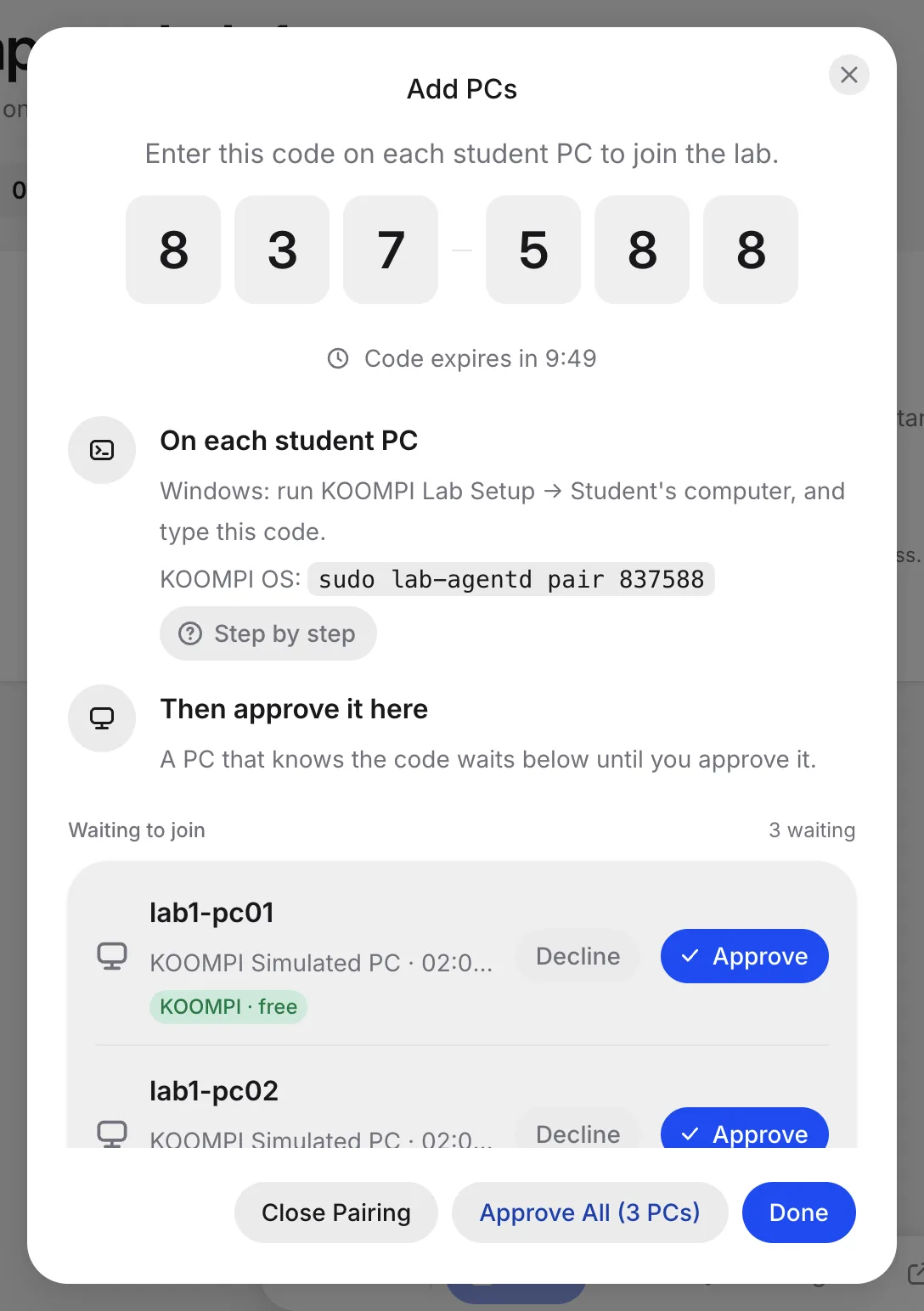
Each student PC joins with a 6-digit code, then you approve it. No IP addresses to type.
Act on every PC, or only the ones you select. The command bar stays at the bottom of the screen.
Students know when you're looking
The tray icon tells a student when the teacher can see their screen.
Every teacher has a PIN
Add teachers in Settings. Every action is recorded in the audit log.
Only PCs you approve
A PC joins with a one-time code and your approval. Every connection is encrypted.
02How it works
For a lab of 30 PCs, the first setup takes about an hour. After that, there's nothing to do day to day.
Teacher's computer
KOOMPI Lab app · the lab runs here
Student PCs
KOOMPI OS or Windows · find the lab by themselves
Step 01
Name the lab and create the admin PIN. Then add your teachers, each with their own PIN.
Step 02
Install the student app on each PC, type the 6-digit code, then approve it in the console.
Step 03
See every screen, lock the room, send a message or open a website for the class.
03Download
Install the app on the teacher's computer, then the student app on each PC. Version 0.1.10, released 7 Nov 2026.
The KOOMPI Lab app. The lab runs inside it, so there's no separate server — keep it on during class.
The student app: lock screen, messages and Raise Hand. It starts by itself whenever someone signs in.
 KOOMPI OSkoompi-lab-agent package · 4.5 MB · v0.1.10 Install with the terminal Download
Copy each line into a terminal on the PC, one at a time.
01 · Download
$ curl -LO https://storage.koompi.cloud/org_6969b022790a1dffd30229c1/koompi/koompi-lab/0.1.10/koompi-lab-agent-0.1.10-1-x86_64.pkg.tar.zst02 · Check the download (prints OK)
$ echo "2b4d47cd5d162975ae3efbd61069b865d13dfdd3210b6ee0d66822268c94e374 koompi-lab-agent-0.1.10-1-x86_64.pkg.tar.zst" | sha256sum -c03 · Install the student app and service
$ sudo pacman -U ./koompi-lab-agent-0.1.10-1-x86_64.pkg.tar.zst04 · Check that this PC can see the lab
$ lab-agentd find05 · Join the lab, then approve the PC in KOOMPI Lab
$ sudo lab-agentd pair 06 · Start the service
$ sudo systemctl enable --now koompi-lab-agent07 · Log out and in once, then check everything
$ lab-agentd doctorLater updates come from the teacher's computer (Settings → Student PCs), so you only do this once per PC.
Windows says "Windows protected your PC"? Choose More info → Run anyway. Windows 10 needs Microsoft Edge WebView2; Windows Update installs it.
macOS won't open it? Go to System Settings → Privacy & Security and choose Open Anyway. Allow incoming connections when asked.
ef833092142f521350d39e35db7ae0dc116e0d6831b85353ddc2c62c467a87318692a202f8e6a041853dcad60aeb1c39b0899a08447ff2e37572efb85d3c92ea2b4d47cd5d162975ae3efbd61069b865d13dfdd3210b6ee0d66822268c94e374fa64541b7bf982c03f0d6ef904e01ed2ce67867cc0d97ac77f4abb25fa6980949b8fe8acbbf50ac8b10f4ff2536d21eb4eba02078e15113d8a06fcf11747b877Check a file on Windows with certutil -hashfile <file> SHA256, or on macOS with shasum -a 256 <file>.
04Pricing
Licence codes are checked on the teacher's computer, so they work without internet too.
Up to 5 student PCs
Any kind of PC. Try KOOMPI Lab, or run a small lab — no licence needed.
Any number of student PCs
One licence per teacher's computer. Request it in Settings → Licence, and we send you a code to paste in.
Licence included, free
Labs set up with KOOMPI hardware — including every OneLab — get their licence code at no cost.
05Requirements
Coming next
KOOMPI Lab is new, and growing with every release.
OneLab
OneLab brings Ministations, a content server, Wi-Fi and KOOMPI Lab together, set up by our team — with the KOOMPI Lab licence included.